
AICKO CAPTURE: free screen capture software to illustrate your lessons
AICKO CAPTURE is screen capture software for Windows 10 and 11 that records an image or an MP4 video of your screen. You choose the exact area, and a built-in editor lets you annotate, highlight and crop.
It is free. Teachers and parents can use it to show a step on screen, record a short explanation or save a picture for a printed worksheet, without learning a complicated program.

Get AICKO CAPTURE
At a glance
- Platform : Windows 10 and 11
- Price : free
- Outputs : image (PNG, JPG) and MP4 video
- Editor : annotate, highlight, crop
- Area : exact selection
Why screen capture software suits lesson preparation
Worksheets often need a picture: a table from a website, a graph from a program, a step in a procedure. Taking a screenshot and adding an arrow takes seconds with AICKO CAPTURE, and the result can go straight into your document.
A short MP4 video also helps when a learner is absent. You solve a problem on screen, talk through it, and send the file.
It is also handy for family life. You can record how to use a program, for example, so that a grandparent or a colleague can follow the steps at their own speed, as often as needed.
What the software does
Capturing an image
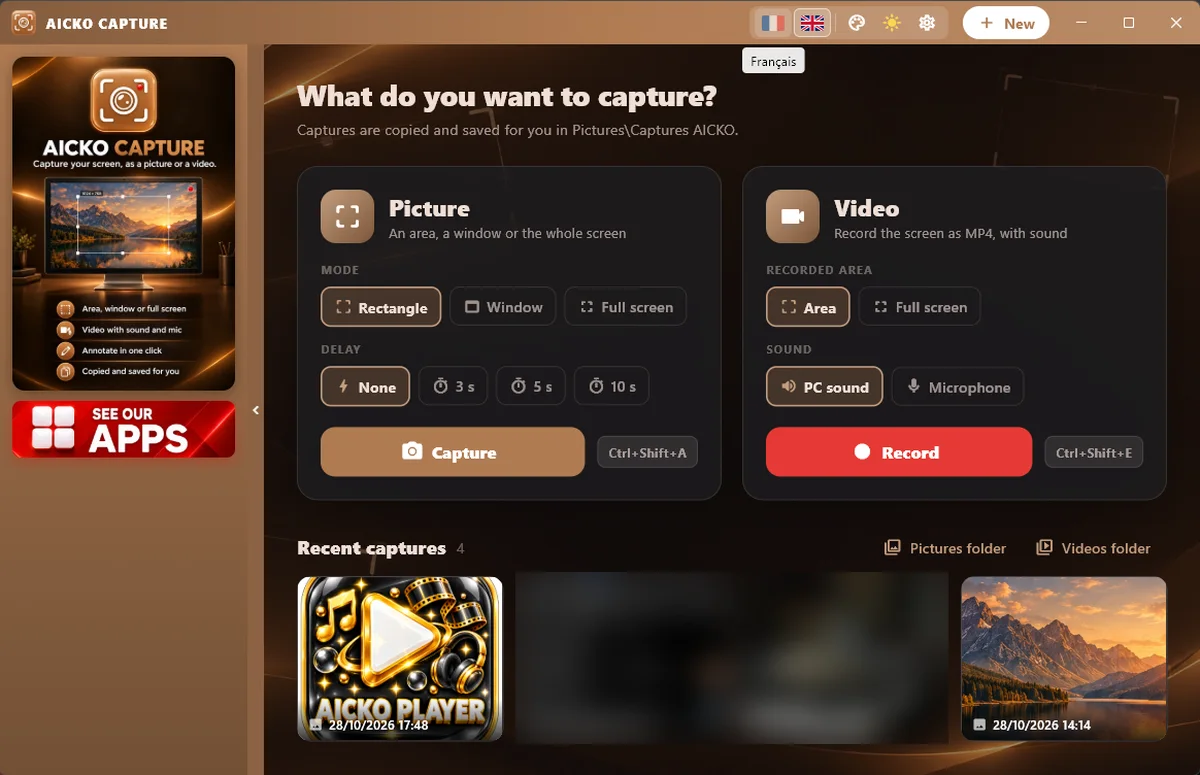
- Capture the exact area you select on the screen.
- Copy the picture to the clipboard to paste it at once.
- Right-click and choose Save as to keep a file.
- Save in PNG or JPG format.
Recording a video
- Record an MP4 video of the selected area.
- A red frame shows the area, and a REC bar with a timer sits above it.
- Pause and resume; the pieces are joined at the end.
- The sound of the PC can be recorded with the video.
Annotating
The editor lets you annotate, highlight and crop an image after the capture. That is enough to circle a result or underline a key line before you print it.
Settings
The software uses a keyboard shortcut to start a capture. The interface is available in French and English, and you can choose its color.
Getting started
- Install AICKO CAPTURE from the Microsoft Store on Windows 10 or 11.
- Open the software and choose image or video.
- Draw the area to capture on the screen.
- For a video, watch the timer, and stop when you are done.
- Annotate the image if needed, then save it or paste it into your document.
Good practice for teaching material
Close unneeded windows and notifications before you record. A clean screen keeps attention on the lesson, and nothing private appears by accident.
Rehearse once before the real recording. A thirty-second test shows whether the area is right, whether the sound is audible and whether the timer is easy to see, and it saves you from repeating a long take.
Name each file at once with the topic and the date. A folder of untitled recordings is hard to use a month later.
Capture only the area that matters. A small, focused picture prints better and uses less ink than a full-screen image.
If a capture shows a window with names or marks, crop or cover them before sharing. Cropping keeps private details out of the picture.
Keep videos short, a few minutes each, and name them by topic. To place the images in a handout, see the AICKO WORD page, or browse the Algebra 2 (Première) page for worksheets to illustrate.
Frequently asked questions
What is the best free screen capture software for Windows?
AICKO CAPTURE is free screen capture software for Windows 10 and 11. It takes screenshots of an exact area or records MP4 video with a REC bar and timer, and includes an editor to annotate, highlight and crop.
Can AICKO CAPTURE record video with sound?
Yes. It records MP4 video of a selected area and can capture the sound of the PC. A red frame marks the area, and you can pause and resume the recording.
How do I copy a screenshot straight into a document?
After capturing the exact area, copy the picture to the clipboard and paste it into your document. You can also right-click to save it with Save as, as a PNG or JPG file.
Which languages does AICKO CAPTURE support?
The interface is available in French and English, and its color can be chosen in the settings. The software is installed from the Microsoft Store on Windows 10 and 11.
